
How to Download the Fb88 App for Android and iOS: Device Requirements and Security Permissions
Installing the mobile app is a way to access Fb88 without relying on a browser or links that change over time. This page covers the full installation process for both Android and iOS, from device checks and file download to permissions and trust verification, ideal for first-time users.
Opening Fb88 through a browser every time and using an app already installed on your phone are two very different experiences in terms of convenience. The section below walks through the installation steps for both operating systems, along with key points to check before you start.
Preparing Your Device Before Downloading
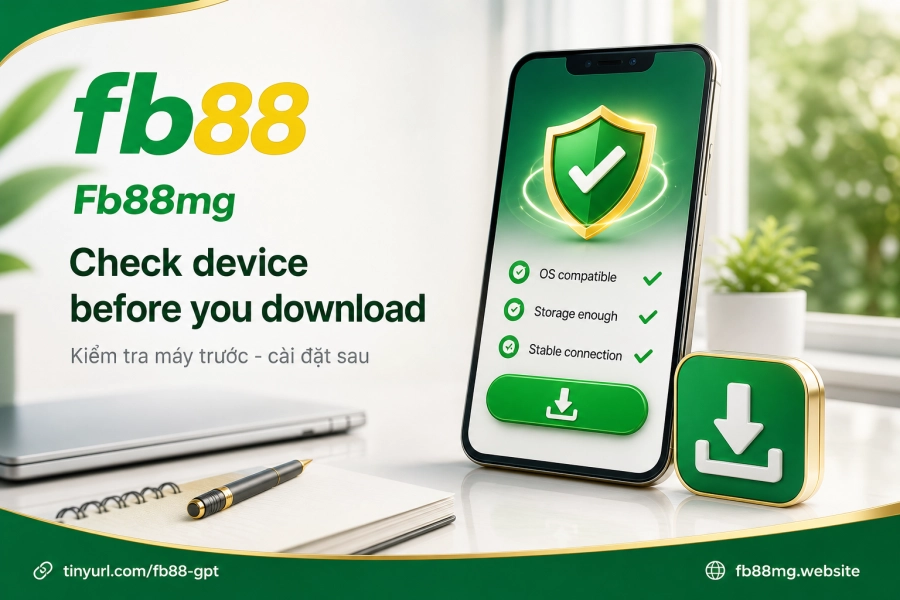
Before downloading any file to your device, there are two things to check right away: free storage space and your network connection. Fb88 distributes two separate apps — Fb88 Sports (about 32.7 MB) and the main app (about 26.9 MB). The total download is small, but your device should keep at least 100 MB of free storage so the unpacking and installation run smoothly. If your phone is close to its storage limit, the installation may stop halfway without a clear error message.
As for connectivity, a stable Wi-Fi connection is preferable to mobile data to avoid interrupted downloads. Installation usually takes about 3–5 minutes depending on your connection speed. In addition, the brand also supports an HTML5 version — meaning it can run directly in your browser without installing any extra file — which suits devices that don't meet the requirements for a native app install.
Installing on Android: Step-by-Step APK Process
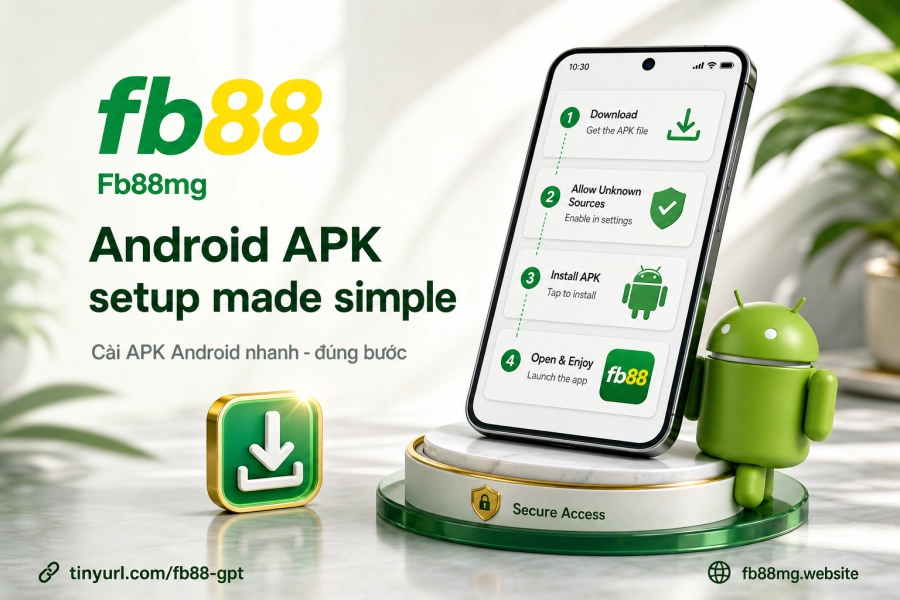
Android does not distribute the Fb88 app through Google Play, so the process follows an APK file downloaded directly from the official website. The key difference from a regular app install is that your device needs an extra system permission enabled before you can open the file.
Follow these steps in order:
- Go to the official download page of Fb88mg and choose the correct Android version.
- Download the APK file to your device's storage. Your browser may show a "this file may harm your device" warning — this is Android's standard message for any APK file outside the Play Store, not specific to this app.
- Go to Settings → Security → Install unknown apps (menu names may vary by Android version) and allow your browser or file manager to perform the installation.
- Open the APK file you downloaded and confirm the installation when the system asks.
- Once installed, log in with your account as you normally would on the web.
The "unknown sources" permission only needs to be enabled during installation — you can turn it off again afterward if you wish. This is a mechanism Android requires to control app origins and does not affect how the app works once it has been successfully installed.
Installing on iOS: Trust Verification via Safari
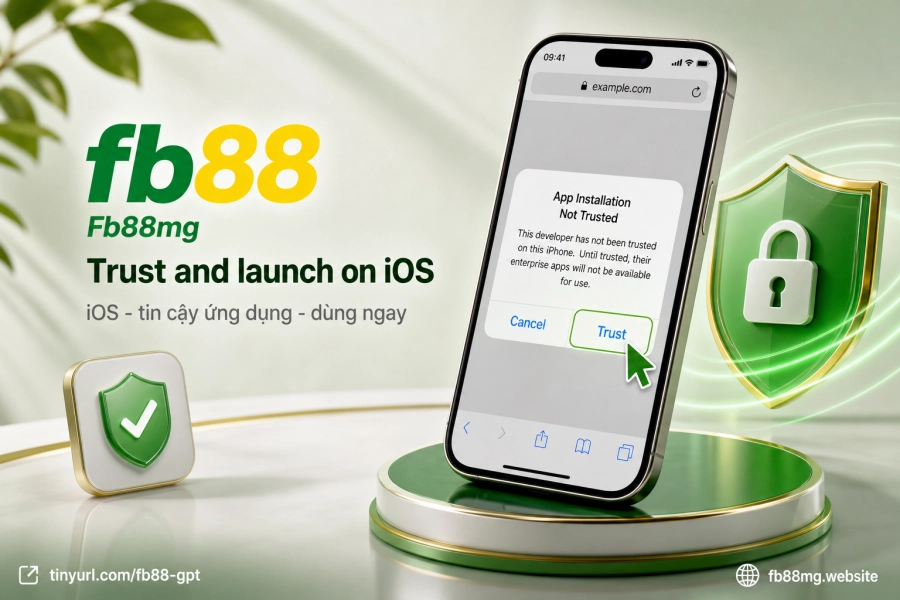
On iPhone and iPad, the process has an extra step that Android users don't encounter: confirming the app developer as "trusted" in General Settings. If you skip this step, the app will be blocked immediately when you open it.
The steps are as follows:
- Open the official download link in Safari — don't use Chrome or another browser, as iOS only allows installing apps from outside the App Store through Safari.
- Choose the version that matches your device and confirm the download.
- Once the download finishes, go to Settings → General → VPN & Device Management (or Device Management on newer iOS versions).
- Find the Fb88 app developer name, tap Trust, and confirm.
- Return to your home screen, open the app and log in.
The trust confirmation step is an Apple security mechanism that applies to all apps distributed outside the App Store — it is not a sign of anything unusual from the app itself. If you don't see the "Device Management" option in General Settings, the file either didn't download successfully or was corrupted partway through; downloading it again from scratch via Safari will fix the problem.
Logging In, Updates and App Security
After installation, log in with the account you already have on the web — there's no need to create a separate account for the app. Your full balance, transaction history and active promotions sync as soon as you log in.
Promotions and offers in the app stay the same as on the official website, so users don't miss out by switching from the browser to the app.
As for updates: Fb88 releases regular monthly patches to fix bugs and improve performance. Android users need to download the latest APK file from the official site each time there's an update, while iOS users receive notifications through the configuration profile system. Using an outdated APK file for too long may cause some features to malfunction.
The app runs on the brand's shared security infrastructure — including 128-bit TLS/SSL encryption and multi-layer DDoS firewall protection. Both the Android and iOS versions apply this security layer, and neither version is treated differently in terms of technical security.
If you encounter a login error after a successful installation, the first troubleshooting step is to clear the app cache and try again. If the app fails to launch on Android, check whether the permission for installing from external sources was granted correctly. On iOS, if the app shows a "Not Trusted" message, go back to the verification step under Device Management — this is the most common oversight among first-time iPhone users.
To learn more about how your information is protected when using the app, see the Security page. Once you've installed and logged in, the next step is usually exploring Sports or Casino directly in the app.